Node.js File Metadata: Permissions, Symlinks, Sparse Files, and Special Paths
File metadata is the information the operating system keeps about a file path or an open file. The actual file content is one part of the story. Metadata is everything around it - permissions, owner, group, timestamps, size, file type, inode identity, symlink behavior, and a few details that look odd when the path does not point to a normal file on disk.
Node exposes this information through APIs like fs.stat(), fs.lstat(), fs.fstat(), fs.chmod(), and fs.chown(). These APIs let you ask the filesystem what a path is, who owns it, how large it is, when it changed, and what your process may be allowed to do with it.
The main thing to remember is simple. Metadata is a snapshot. It tells you what the filesystem reported at the moment you asked. It does not guarantee that the same path will still have the same permissions, type, size, or target when your next operation runs.
That detail explains a lot of the advice in this chapter. Check metadata when you need to understand a path, but do the actual operation and handle errors from that operation. Files can change between calls. Symlinks can point somewhere else. Network filesystems can report unusual values. Special files like devices, FIFOs, sockets, and /proc entries do not behave like normal disk files.
File Permissions and Metadata
The most familiar file metadata is the permission string you see from ls -l, such as -rw-r--r--.
That string tells you two things. The first character tells you the file type. The next nine characters describe who can read, write, or execute the file.
A regular file might look like this -
-rw-r--r--The leading - means regular file. A d would mean directory, and an l would mean symlink. The remaining characters are split into three groups -
rw- r-- r--The first group belongs to the owner. The second group belongs to the file's group. The third group belongs to everyone else.
Permissions are one part of the same metadata record. The operating system also tracks size, timestamps, ownership, file type, inode number, and block allocation separately from the file's content. Node gives you that information through fs.stat() and the related APIs.
Most examples in this chapter use CommonJS with node: built-in specifiers. Snippets that use top-level await import from node:fs/promises.
The Unix Permission Model
On Unix-like systems, basic permissions are built from nine bits. They are arranged as three groups of three -
- Owner - the user that owns the file
- Group - users that belong to the file's assigned group
- Others - everyone else
Each group has a read bit, a write bit, and an execute bit.
The kernel checks these bits whenever a process tries to open, read, write, execute, or traverse a path. Your JavaScript code does not enforce these rules. Node asks the operating system to do something, and the operating system either allows it or returns an error like EACCES or EPERM.
These permission bits are usually written in octal. Each permission has a number -
- Read is
4 - Write is
2 - Execute is
1
Add them together for each group. So rwx becomes 7, rw- becomes 6, r-x becomes 5, and r-- becomes 4.
That means this permission string -
-rw-r--r--maps to this octal mode -
0o644The owner gets rw-, which is 6. The group gets r--, which is 4. Others get r--, which is also 4.
You can read the permission bits from Node like this -
const fs = require('node:fs');

const stats = fs.statSync('./package.json');
const perms = stats.mode & 0o777;

console.log(perms.toString(8)); // "644"
The mode field contains more than permissions. The upper bits describe the file type, such as regular file, directory, symlink, or device. The lower nine bits describe permissions. Masking with 0o777 keeps only the permission bits.
If you see a raw mode value like 33188, it is easier to understand in octal. That value is 0o100644. The 0o100000 part means regular file. The 0o644 part is the permission set.
You usually do not need to decode the file type by hand. Use the methods Node gives you -
stats.isFile();
stats.isDirectory();
stats.isSymbolicLink();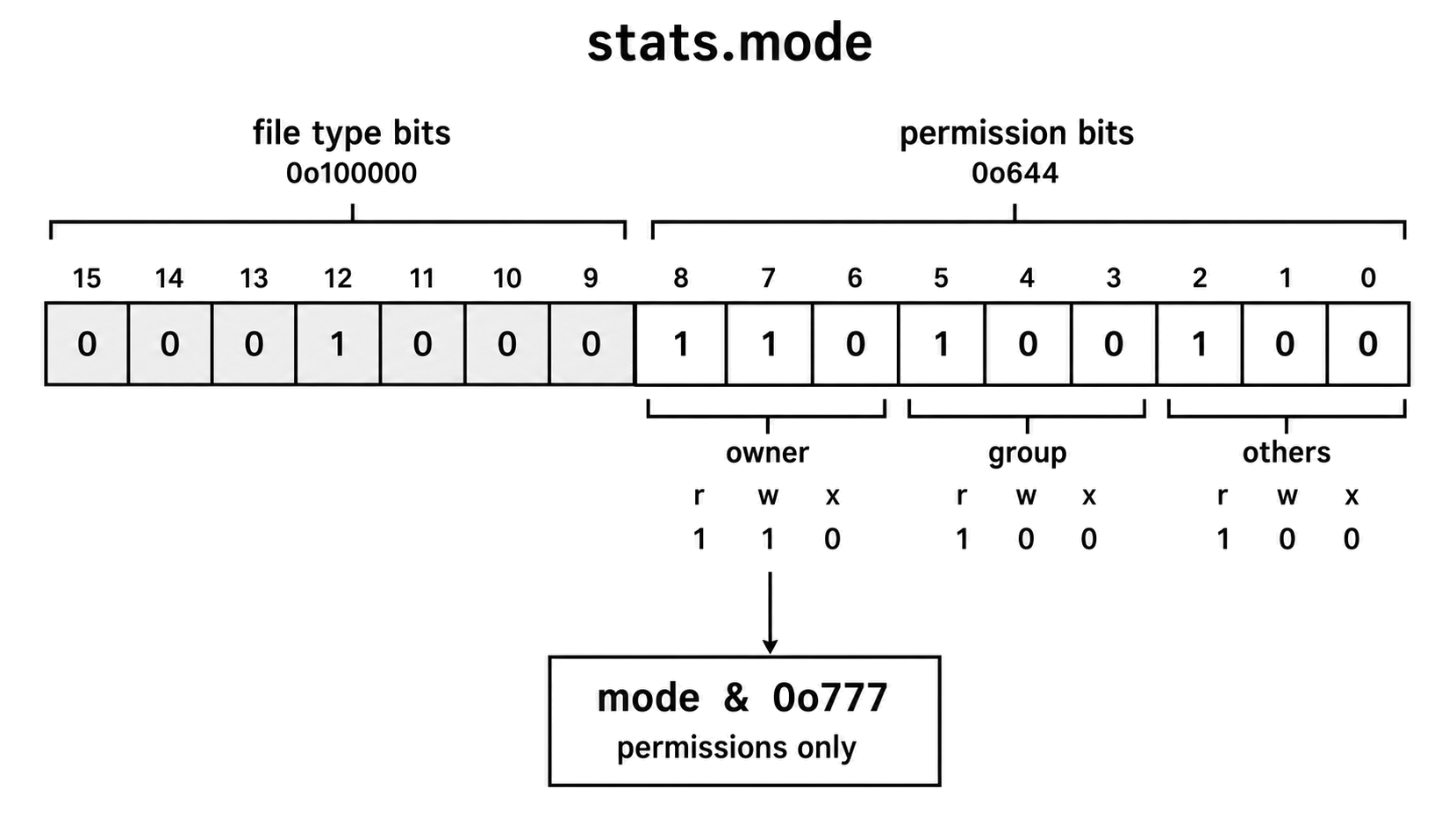
Figure 4.13 - The mode value stores file type information above the permission bits. Masking with 0o777 keeps only the low permission bits. The Stats type-checking methods decode the file-type part for you.
You will see these modes often -
0o644- owner can read and write, everyone else can read0o755- owner can read, write, and execute, everyone else can read and execute0o600- owner can read and write, nobody else gets access0o777- everyone can read, write, and execute
0o644 is common for normal files. 0o755 is common for executables and directories. 0o600 is common for private keys and credential files. 0o777 is almost never what you want in application code.
Directories need one extra explanation. The execute bit on a directory does not mean "run this directory." It controls lookup. If you have execute permission on a directory, you can enter it, resolve names inside it, and access a known file name inside it.
A directory with read permission but no execute permission lets you list names, but you cannot open the entries inside. A directory with execute permission but no read permission lets you access a known entry by name, but you cannot list the directory.
That is why directories commonly use 0o755. The owner can manage the directory, and other users can enter it and read public entries.
How Default Permissions Work
When your process creates a file, the mode you request is not always the final mode. The operating system applies the process umask first.
A umask is a process-wide mask that removes permission bits from newly created files and directories. It does not add permissions. It only takes them away.
For normal files, Node commonly starts from 0o666 before the mask is applied. That means read and write for owner, group, and others. Files do not get execute permission by default.
With a common umask of 0o022, the calculation works like this -
0o666
& ~0o022
= 0o644
So a file created by fs.writeFile() often ends up as 0o644. The umask removed write permission from group and others.
Directories usually start from 0o777, because directories need execute permission for traversal. With the same 0o022 mask, a new directory becomes 0o755.
You can request a stricter mode when creating a file -
fs.writeFileSync('./secret.key', keyData, { mode: 0o600 });That asks the OS to create a file where only the owner can read or write.
The word "asks" is doing real work here. The mode option changes the requested permissions, but the umask still applies. If the process umask is 0o077 and you request 0o644, the final permissions become 0o600.
If you need an existing file to end up with an exact mode, call fs.chmod() after creation and handle any failure.
process.umask() can read or set the process mask, but changing it affects every later file creation in the process. That makes it a blunt tool for application code. It is usually better to pass mode for the specific file you are creating.
There is also a trap with reading the umask. The no-argument form of process.umask() is deprecated because it is thread-unsafe. Internally, reading the value calls the C umask(0) function, then restores the old value. During that tiny window, another worker thread could create a file with the wrong permissions. That is why Node deprecated the no-argument form as DEP0139.
Changing Permissions
Use fs.chmod() or fs.chmodSync() to change the permission bits on an existing path.
For example, this makes a script readable and executable by everyone, and writable by the owner -
fs.chmodSync('./deploy.sh', 0o755);After this call, deploy.sh has this permission shape -
rwxr-xr-xOn Unix, the execute bit is what lets the kernel run a script or binary. There is no .exe convention like Windows. If a script should be runnable directly, it needs execute permission.
The kernel decides whether your process is allowed to change permissions. Usually, only the file owner or root can do it. If your process does not own the file, fs.chmod() fails with EPERM.
Here is a simple error check -
fs.chmod('./config.json', 0o644, (err) => {
  if (err && err.code === 'EPERM') {
    console.error('Cannot change permissions - not the owner');
  } else if (err) {
    throw err;
  }
});
When you already have an open file descriptor, fs.fchmod() changes permissions through that descriptor instead of through a path. In the promise API, fileHandle.chmod() gives you the same idea on a FileHandle.
Changing permissions updates ctime, which is the file's change time. It does not update mtime, because the file content did not change. That distinction is useful. A build tool watching mtime should not treat a permission-only change as a source content change.
A deployment script might use chmod() after unpacking files. For example, after extracting a release, you can make every shell script in ./bin executable -
const fs = require('node:fs');
const path = require('node:path');

for (const entry of fs.readdirSync('./bin', { withFileTypes: true })) {
  if (entry.isFile() && entry.name.endsWith('.sh')) {
    fs.chmodSync(path.join('bin', entry.name), 0o755);
  }
}
The same permission bits also help protect private files. SSH refuses to use a private key if group or others can read it. Your own application can enforce a similar rule before loading sensitive material -
function checkKeyPermissions(keyPath) {
  const stats = fs.statSync(keyPath);
  const perms = stats.mode & 0o777;

  if (perms & 0o077) {
    throw new Error(`${keyPath} has permissions ${perms.toString(8)}, expected 0600`);
  }
}
The bitmask 0o077 checks whether group or others have any permission bits set. If any of those bits are present, the file is too open for a private key.
File Ownership and fs.chown()
Permissions only make sense when you also know ownership. Every file has a numeric owner ID, called uid, and a numeric group ID, called gid.
When a process tries to open a file, the kernel chooses which permission group to use. The order is straightforward -
- If the process user ID matches the file owner, use owner permissions.
- Otherwise, if the process belongs to the file group, use group permissions.
- Otherwise, use others permissions.
This can surprise people. If you own the file, the kernel uses owner permissions even if the group permissions would have allowed more. It does not search for the most permissive group. It uses the first matching permission class.
You can inspect owner and group IDs like this -
const stats = fs.statSync('./app.log');
console.log(`uid=${stats.uid}, gid=${stats.gid}`);
On Unix, process.getuid() tells you the current process user ID. Node also exposes the current user through os.userInfo() -
const os = require('node:os');

const info = os.userInfo();
console.log(`Running as ${info.username} with uid=${info.uid}`);
fs.chown() changes file ownership. On Unix, the useful cases are usually privileged. Regular users cannot transfer file ownership to another user, because that would allow quota bypasses and impersonation. Some systems let a user change the file group to another group they belong to, but changing the owner normally requires root.
Here is a root-style setup example -
fs.chownSync('./app.log', 33, 33); // www-data on Debian and UbuntuTreat that as deployment or image-build code, not something ordinary application code should casually run. It is useful in scripts running as root, Docker image builds, or setup scripts that create files for a service account.
When the path is a symlink, fs.lchown() targets the link itself instead of the file it points to. You rarely need it, but it follows the same split as stat() and lstat().
fs.access(), Effective UIDs, and the TOCTOU Problem
fs.access() checks whether the calling process appears able to read, write, or execute a path.
Example -
const { constants } = require('node:fs');

fs.accessSync('./config.json', constants.R_OK | constants.W_OK);
If the check fails, it throws. If it succeeds, the next operation can still fail.
There are two common reasons.
First, Unix has more than one user identity for a process. access() checks permissions using the process's real UID and GID. Actual file operations such as open() usually use the effective permission identity. On Linux, file permission checks use fsuid and fsgid, which normally track effective IDs. If a process is running with elevated privileges, or has dropped privileges temporarily, fs.access() and fs.open() can disagree.
Second, the filesystem can change between the check and the operation. This is the TOCTOU race - Time of Check, Time of Use.
Between these two calls, anything can happen -
fs.accessSync(file, fs.constants.R_OK);
const data = fs.readFileSync(file);
Another process can change permissions. The file can be deleted. A directory in the path can be renamed. A symlink can be swapped. The access check told you something about the past, not a guarantee about the next operation.
For normal file operations, use the simpler pattern. Try the operation and handle the error from that operation. Do not check first and then act.
Use fs.access() when you only want to report accessibility, such as in a health check or status display. Do not use it as a preflight before open(), readFile(), or writeFile().
Windows ACLs
Unix permission bits are not the native permission model on Windows.
Windows uses Access Control Lists, usually called ACLs. A file can have multiple Access Control Entries, or ACEs. Each entry can grant or deny specific rights to a specific user or group. That model can express cases that owner, group, and others cannot.
Node keeps the Unix-style mode API available on Windows for compatibility, but it does not expose full Windows ACL management through the normal mode option.
In practice, chmod() on Windows mostly maps to read-only or writable behavior. Execute bits do not work like Unix. Windows decides executability from file extensions such as .exe, .bat, and .cmd, plus file associations.
fs.chown() also exists on Windows for API compatibility, but it is rarely useful in ordinary application code. Windows ownership uses Security Identifiers, or SIDs, not simple numeric Unix user IDs.
Cross-platform code should treat chmod() as a small portability surface on Windows. If you need deeper Windows permission control, use platform-specific tooling.
For scripts that only need Unix execute bits, guard the call -
if (process.platform !== 'win32') {
  fs.chmodSync('./script.sh', 0o755);
}
Special Permission Bits
The Unix mode value can also include three special bits in a fourth octal digit -
- Setuid,
4- when set on an executable, the program runs with the file owner's privileges - Setgid,
2- on executables, the program runs with the file group's privileges - Sticky bit,
1- on directories like/tmp, users can create files but cannot delete files owned by other users
You will see these in modes like 0o4755 for setuid or 0o1755 for the sticky bit plus normal executable permissions.
Application code rarely sets these bits. They usually belong to system administration, package installation, or carefully reviewed deployment scripts. Still, they explain why a mode value may appear to have a fourth octal digit.
Metadata and the Stats Object
Permissions are only one part of the Stats object. fs.stat() asks the filesystem for metadata without reading the file content.
On a warm local filesystem, stat() is often cheap. It may come from kernel caches. But it still depends on path lookup, the filesystem backend, network latency, virtual filesystems, and cache state.
A basic stat call looks like this -
const stats = fs.statSync('./data.json');

console.log(stats.size);    // bytes
console.log(stats.mtimeMs); // last content modification in milliseconds
console.log(stats.mode);    // file type plus permissions
The Stats object includes fields like these -
| Field | What it tells you |
|---|---|
size | Logical content length in bytes. For regular files, this is the byte count. For symlinks through lstat(), it is the length of the stored target path. For directories and special files, the value may not describe readable content. |
mode | File type in the high bits and permissions in the low bits. Use stats.isFile() and related methods for type checks, or stats.mode & 0o777 for permissions. |
uid, gid | Numeric owner and group IDs. |
nlink | Hard link count. This is the number of directory entries pointing to the inode. |
ino | Inode number. Combined with dev, it is the usual file identity key on POSIX-like filesystems. |
dev | Device ID of the filesystem containing the file. |
rdev | Device ID represented by a device file. For regular files, this is usually 0. |
blksize | Preferred I/O block size from the filesystem. Treat it as a hint. |
blocks | Allocated block count in the platform's stat representation. On Linux, this is usually reported in 512-byte units. |
Some of these fields are easy to misuse. A directory's size is not the total size of everything inside it. A /proc file may report size 0 and still return text when read. A sparse file may report a huge logical size while using far less disk space.
The safe reading is this - metadata tells you how the filesystem describes the path, not always how a normal file read will behave.
Timestamps
File timestamps are useful, but each one answers a different question. Mixing them up causes real bugs in build tools, sync tools, caches, and deployment scripts.
mtime
mtime means modification time. It changes when file content changes.
If you write new bytes to a file, mtime moves forward. This is the timestamp build tools and cache systems often compare.
Example rebuild check -
function needsRebuild(src, out) {
  try {
    const srcStat = fs.statSync(src);
    const outStat = fs.statSync(out);

    return srcStat.mtimeMs > outStat.mtimeMs;
  } catch {
    return true;
  }
}
The catch handles common cases. If the output does not exist, rebuild. If the source path is missing, return true and let the actual build step report the missing source clearly.
atime
atime means access time. It is supposed to track when the file was last read.
In practice, do not treat it as a precise access log. Many Linux systems use relatime or noatime mount options. Updating atime on every read would turn reads into metadata writes, so filesystems often reduce or disable those updates.
With relatime, atime updates only in limited cases, such as when the current atime is older than mtime or ctime, or when more than 24 hours have passed. With noatime, it does not update at all.
Use atime as a rough signal only.
ctime
ctime means change time. It changes when file metadata changes, and also when content changes.
Examples that update ctime include -
- Writing file content
- Running
chmod - Running
chown - Renaming the file
- Changing link state
The "c" does not mean creation. In POSIX terminology, it means change, as in inode status change.
Node cannot set ctime directly through timestamp APIs. The kernel updates it when file status changes.
ctime can help you notice metadata changes that mtime hides, but it is not an audit log. Privileged users, restored filesystems, clock changes, and low-level disk access can all make timestamp-based conclusions unreliable.
birthtime
birthtime is creation time when the filesystem exposes it.
Treat it as optional. Some filesystems provide a real creation timestamp. Others do not. On platforms that do not expose creation time, Node may return the Unix epoch or derive a value from ctime.
If birthtime is the epoch, the filesystem probably does not provide real creation time. If birthtime equals ctime, that may also be a hint, but it is not proof by itself.
Date objects and millisecond numbers
Node gives timestamp fields in two common forms. For example, mtime is a Date object, and mtimeMs is a number in milliseconds.
Use the Ms fields for comparisons -
if (stats.mtimeMs > cachedMtimeMs) {
  console.log('file changed since last check');
}
Number comparisons are simple and avoid Date coercion surprises.
Updating atime and mtime
Use fs.utimes() to set access time and modification time.
This is the programmatic version of touch -
const now = new Date();

fs.utimesSync('./file.txt', now, now);
This can be useful when you want to force a rebuild, preserve timestamps during a copy, or test time-dependent code.
You can set atime and mtime within the range and precision supported by the OS and filesystem, assuming the process has permission. You cannot set ctime or birthtime through fs.utimes().
A backup tool might preserve source timestamps like this -
fs.copyFileSync(src, dest);

const srcStats = fs.statSync(src);
fs.utimesSync(dest, srcStats.atime, srcStats.mtime);
The copied file now has atime and mtime restored as closely as Node and the filesystem can represent them. This does not preserve ctime or birthtime, and it may not be nanosecond-exact.
Without this step, the copy would usually get the current time for atime and mtime. That can make incremental backup tools treat the copy as newly changed.
BigIntStats
The normal Stats object stores numeric fields as JavaScript numbers. That is fine for most application code, but some metadata values can be large or need nanosecond-unit timestamp fields.
If you need those fields, pass { bigint: true } -
const stats = fs.statSync('./file.txt', { bigint: true });

console.log(stats.mtimeNs); // 1678901234567890123n
With { bigint: true }, numeric fields become BigInts. Timestamps gain Ns variants such as mtimeNs.
The unit is nanoseconds, but the real precision still depends on the operating system and filesystem. A nanosecond-unit field does not guarantee nanosecond-precise storage.
Use BigInt stats when you need the extra range or the Ns fields. Otherwise, the normal number fields are simpler and faster to work with. BigInts also cannot be mixed with regular numbers without explicit conversion.
stat vs lstat vs fstat
The stat family asks the same basic question in three different ways -
| API | What it reports |
|---|---|
fs.stat(path) | Reports metadata for the target. If the path is a symlink, it follows the symlink. |
fs.lstat(path) | Reports metadata for the path itself. If the path is a symlink, it reports the symlink. |
fs.fstat(fd) | Reports metadata for an already open file descriptor. |
Use stat() when you care about the thing a path resolves to. Use lstat() when the symlink itself is the thing you care about. Use fstat() when you already have the file open and want metadata for that open resource.
The symlink difference is the easiest to see with size. Suppose link.txt points to a 1 MB target file. fs.stat('link.txt') reports the target file's size. fs.lstat('link.txt') reports the length of the stored path inside the symlink.
Only lstat() makes this return true -
stats.isSymbolicLink();fstat() avoids another pathname lookup. Once a file is open, the descriptor already refers to a specific open file. Calling fstat(fd) reports metadata for that open file, even if the path is renamed or replaced afterward.
That is often the better shape when the path may be changing. Open the file, then inspect the open descriptor.
Type-Checking Methods
Since mode includes file-type bits, Node gives you methods that decode them clearly -
stats.isFile();            // regular file
stats.isDirectory();       // directory
stats.isSymbolicLink();    // symlink, only true when using lstat()
stats.isCharacterDevice(); // examples include /dev/null and /dev/urandom
stats.isBlockDevice();     // examples include raw disk devices
stats.isFIFO();            // named pipe
stats.isSocket();          // Unix domain socket
These methods are better than manually checking mode bits. They are easier to read and handle platform differences better.
Use them before processing arbitrary paths. If your code expects a normal file, check that it is a normal file. If your code recurses into directories, check that the entry is a directory. If your code reads whole files into memory, do not accidentally read from /dev/urandom.
For directory traversal, readdirSync() can return Dirent objects directly -
const entries = fs.readdirSync(dir, { withFileTypes: true });

for (const entry of entries) {
  const fullPath = path.join(dir, entry.name);

  if (entry.isFile()) processFile(fullPath);
  if (entry.isDirectory()) recurse(fullPath);
}
With { withFileTypes: true }, Node returns objects that already know their type. That can avoid a separate stat() call for every entry.
On Linux, this information usually comes from the readdir syscall through d_type. Some filesystems report DT_UNKNOWN. For those entries, fall back to lstat().
Links and Inodes
A path is a name. The file's identity is something else.
On POSIX-like filesystems, the identity is usually the inode. An inode stores metadata such as permissions, timestamps, size, block pointers, and a number that is unique inside that filesystem. The inode does not store the file name. File names live inside directories as mappings from name to inode.
When you open /home/user/file.txt, the kernel walks the path one part at a time. It starts at the root directory, finds home, then user, then file.txt. Each directory lookup moves the kernel closer to the inode for the final file.
Because names and inodes are separate, multiple names can point to the same file.
Hard Links
A hard link is another directory entry pointing to the same inode. There is no original and copy at the filesystem level. Both names refer to the same underlying file.
Example -
fs.writeFileSync('a.txt', 'hello');
fs.linkSync('a.txt', 'b.txt');

console.log(fs.statSync('a.txt').ino === fs.statSync('b.txt').ino); // true
If you modify the file through one name, the other name sees the change -
fs.appendFileSync('b.txt', ' world');
console.log(fs.readFileSync('a.txt', 'utf8')); // "hello world"
There is one inode and one set of data blocks. The two paths are two directory entries pointing to that same inode.
The inode tracks how many names point to it through nlink. A fresh file usually has nlink of 1. After creating a hard link, nlink becomes 2.
fs.unlink() removes one directory entry and decreases nlink. The file's data is freed only when two things are true -
nlinkreaches0- no open file descriptors still reference the inode
The open descriptor rule is easy to miss. A process can open a file, another process can remove every name for that file, and the first process can still read and write through the descriptor. The file has no path anymore, but the inode stays alive until the last descriptor closes.
Unix programs use that behavior for temporary files. Create a file, open it, immediately unlink it, and keep using it through the descriptor. When the process exits or closes the descriptor, the storage is reclaimed automatically.
That is why the API is called unlink, not delete. It removes a name. The file may still exist through another name or through an open descriptor.
Hard links have limits. They cannot cross filesystems, because inode numbers are local to a filesystem. A cross-device hard link fails with EXDEV. You also normally cannot hard link directories, because that would create cycles in the directory tree and usually fails with EPERM.
Backup tools use hard links to save disk space. If a file has not changed between snapshots, the new snapshot can hard link to the previous copy. The user sees a complete directory tree, but unchanged files share the same data blocks.
Symbolic Links
A symbolic link is different. It is its own filesystem object, and its content is a path string.
When you access a symlink, the filesystem reads the stored path and continues resolution from there. The symlink has its own inode. The target has another inode.
Example -
fs.symlinkSync('target.txt', 'link.txt');
console.log(fs.readlinkSync('link.txt')); // "target.txt"
fs.readlink() reads the raw path stored inside the symlink. It does not follow the link.
Other APIs usually follow the symlink -
fs.readFileSync('link.txt');
fs.statSync('link.txt');
To inspect the symlink itself, use lstat() -
const linkStats = fs.lstatSync('link.txt');
console.log(linkStats.isSymbolicLink()); // true
Because a symlink stores a path instead of an inode number, it can cross filesystems and point to directories. It can also point to a path that does not exist. That creates a dangling symlink.
Following a dangling symlink gives ENOENT.
Symlinks can also point to other symlinks. The kernel follows the chain up to a limit, often 40 on Linux. A circular chain fails with ELOOP -
fs.symlinkSync('b.txt', 'a.txt');
fs.symlinkSync('a.txt', 'b.txt');

fs.readFileSync('a.txt'); // throws ELOOP
A symlink target can be relative or absolute. A relative symlink stores a path like ../data/file.txt, resolved from the symlink's own directory. Move the symlink somewhere else, and that relative target can break. An absolute symlink stores a path like /home/user/data/file.txt, which can survive local moves but is less portable across machines.
Hard links and symlinks fail differently. Delete the target of a symlink, and the symlink can still exist but lead nowhere. Delete one hard-link name, and the file may still exist through another name.
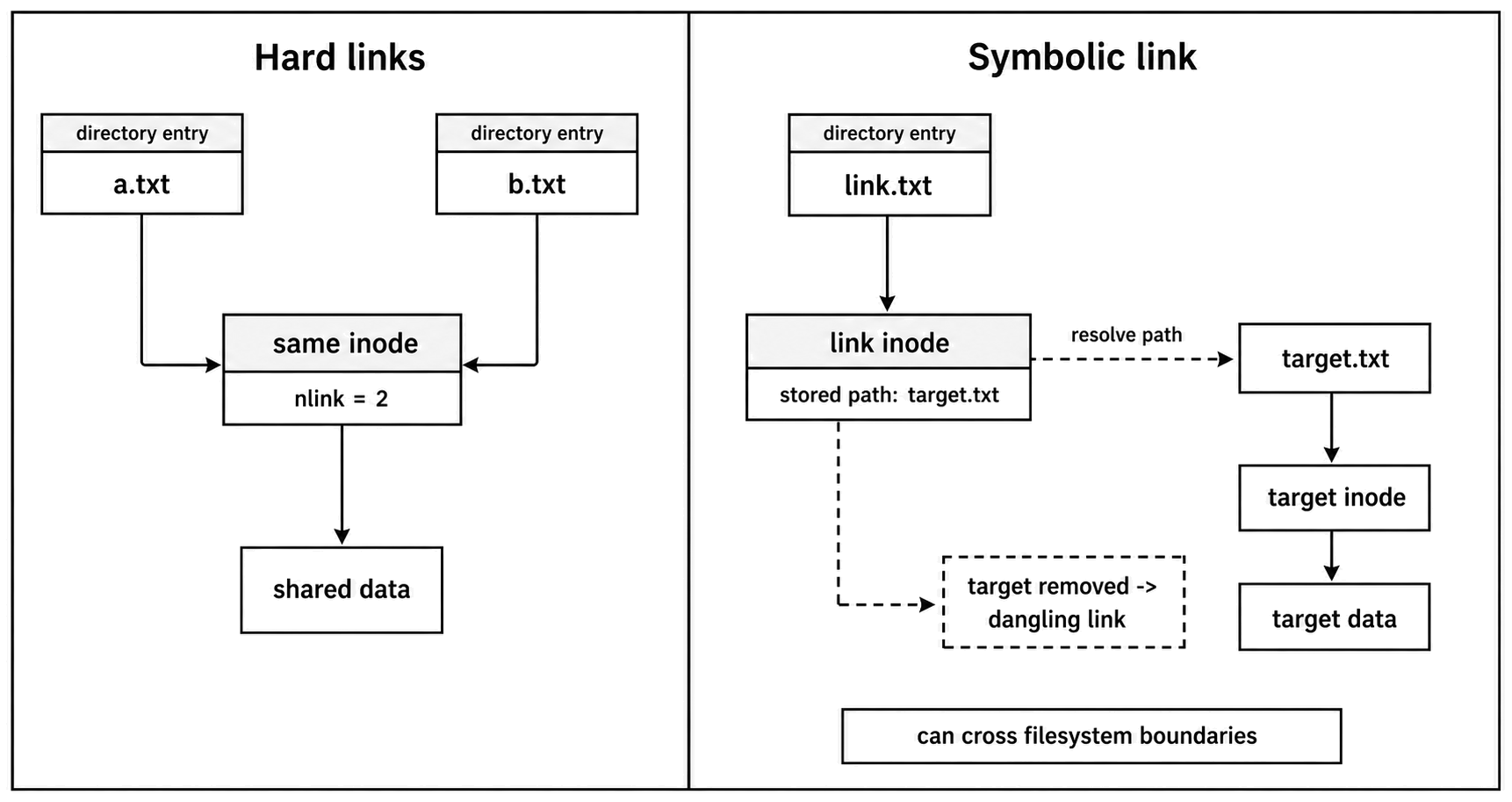
Figure 4.14 - Hard links add more directory entries to the same inode. A symbolic link is a separate filesystem object that stores a path and resolves it later.
Most path APIs follow symlinks. Examples include stat, readFile, writeFile, chmod, and chown.
These APIs work with the link itself -
lstat- inspect the symlinkunlink- remove the symlinkreadlink- read the stored target pathrename- rename the symlink itself
When you need the final target path, use fs.realpath(). It resolves symlinks and returns the final absolute path.
Deployment tools use symlinks for release switching. A release can live in releases/v2, while current points to it. To switch versions, create a new symlink and rename it over the old one. Processes see one complete version or the other.
Detecting Same-File Relationships
Once hard links and symlinks enter the picture, string comparison is not enough.
These two paths might name the same file -
./a.txt
./b.txt
On POSIX-like local filesystems, compare dev and ino -
function sameFile(p1, p2) {
  const s1 = fs.statSync(p1);
  const s2 = fs.statSync(p2);

  return s1.dev === s2.dev && s1.ino === s2.ino;
}
Both fields are needed. Inode numbers are only unique within a filesystem. The dev field separates mounted filesystems.
This uses stat(), so symlinks are followed. If you want to compare the symlink objects themselves, use lstat() instead.
When Files Are Not Normal Files
Many paths look like files but do not behave like regular disk files. A tool that accepts arbitrary paths can encounter devices, virtual files, named pipes, sockets, sparse files, and more.
This is where type checks save you from bad surprises. A regular file has stored content and a finite logical size. Other filesystem entries can block forever, generate endless data, report size 0 while still producing content, or represent an IPC endpoint instead of file content.
Device Files
Files in /dev represent kernel interfaces, not ordinary disk storage.
A few examples make the behavior clear.
/dev/null discards anything you write to it. Reading from it returns EOF immediately.
/dev/urandom produces an endless stream of random bytes from the kernel's cryptographic random source. There is no EOF. If you call fs.readFile('/dev/urandom'), Node can keep reading and allocating memory until the process fails or hits an implementation limit.
/dev/zero produces endless zero bytes. It has the same whole-file read problem.
Read devices only with explicit byte limits -
import { open } from 'node:fs/promises';

const handle = await open('/dev/urandom', 'r');
const buf = Buffer.alloc(32);

try {
  await handle.read(buf, 0, 32, null);
} finally {
  await handle.close();
}
For random bytes, prefer Node's crypto API -
const crypto = require('node:crypto');

const bytes = crypto.randomBytes(32);
crypto.randomBytes() handles platform details internally and works cross-platform.
Many character devices report stats.size as 0 and stats.isCharacterDevice() as true. Block devices such as /dev/sda and /dev/nvme0n1 represent raw storage devices. Reading them can require root and returns raw disk sectors.
If your tool expects ordinary files, reject device files -
if (stats.isCharacterDevice() || stats.isBlockDevice()) {
  throw new Error(`Cannot process device file - ${filePath}`);
}
The /proc Filesystem
On Linux, /proc is a virtual filesystem. Its entries do not live on disk as normal files. The kernel generates their content when you read them.
Examples include -
/proc/cpuinfo- CPU information/proc/meminfo- memory information/proc/[pid]/status- details for a process/proc/self/fd- open descriptors for the current process
Many /proc files report size 0 even though they produce text when read -
const stats = fs.statSync('/proc/cpuinfo');
console.log(stats.size); // 0, but reading still returns content
fs.readFile() can handle many of these files because it reads in chunks until EOF. Low-level code that allocates a buffer based only on stats.size would allocate zero bytes and read nothing.
The content is also generated at read time. Read /proc/meminfo twice and the numbers may differ. These are not stable bytes stored on disk.
Because /proc exists only on Linux, portable code needs a platform guard -
const path = require('node:path');

function readProcText(somePath) {
  const resolved = path.resolve(somePath);

  if (process.platform === 'linux' && resolved.startsWith('/proc/')) {
    return fs.readFileSync(resolved, 'utf8');
  }
}
That guard only classifies the path. If the input is untrusted, you still need a policy for symlinks, path resolution, and which /proc entries are allowed.
Named Pipes and Unix Sockets
Named pipes, also called FIFOs, are inter-process communication channels that appear as filesystem entries.
If one process opens a FIFO for reading, it may block until another process opens it for writing. The reverse can also happen. A file-processing tool that treats a FIFO like a regular file can hang while waiting for the other side.
Unix domain sockets are local IPC endpoints. Docker, PostgreSQL, MySQL, and system daemons often use them. They show up in filesystem metadata, but they are not readable with readFile() as normal file content. They are connection endpoints for protocols.
Reject them when your code expects files -
if (stats.isFIFO() || stats.isSocket()) {
  throw new Error('Cannot process IPC endpoint');
}
Sparse Files
Some regular files have a surprising size story. A sparse file has ranges that are logically part of the file but do not occupy disk blocks. Those ranges are called holes. When your program reads from a hole, it receives zero bytes.
A sparse VM image might report 50 GB of logical size but use only 2 GB of actual disk space -
const stats = fs.statSync('disk-image.qcow2');

const logicalSize = stats.size;         // 50GB
const actualBytes = stats.blocks * 512; // 2GB on common Linux filesystems
On Linux, stats.blocks is commonly reported in 512-byte units. So stats.blocks * 512 is a useful allocated-byte estimate there. Other platforms and filesystems can differ.
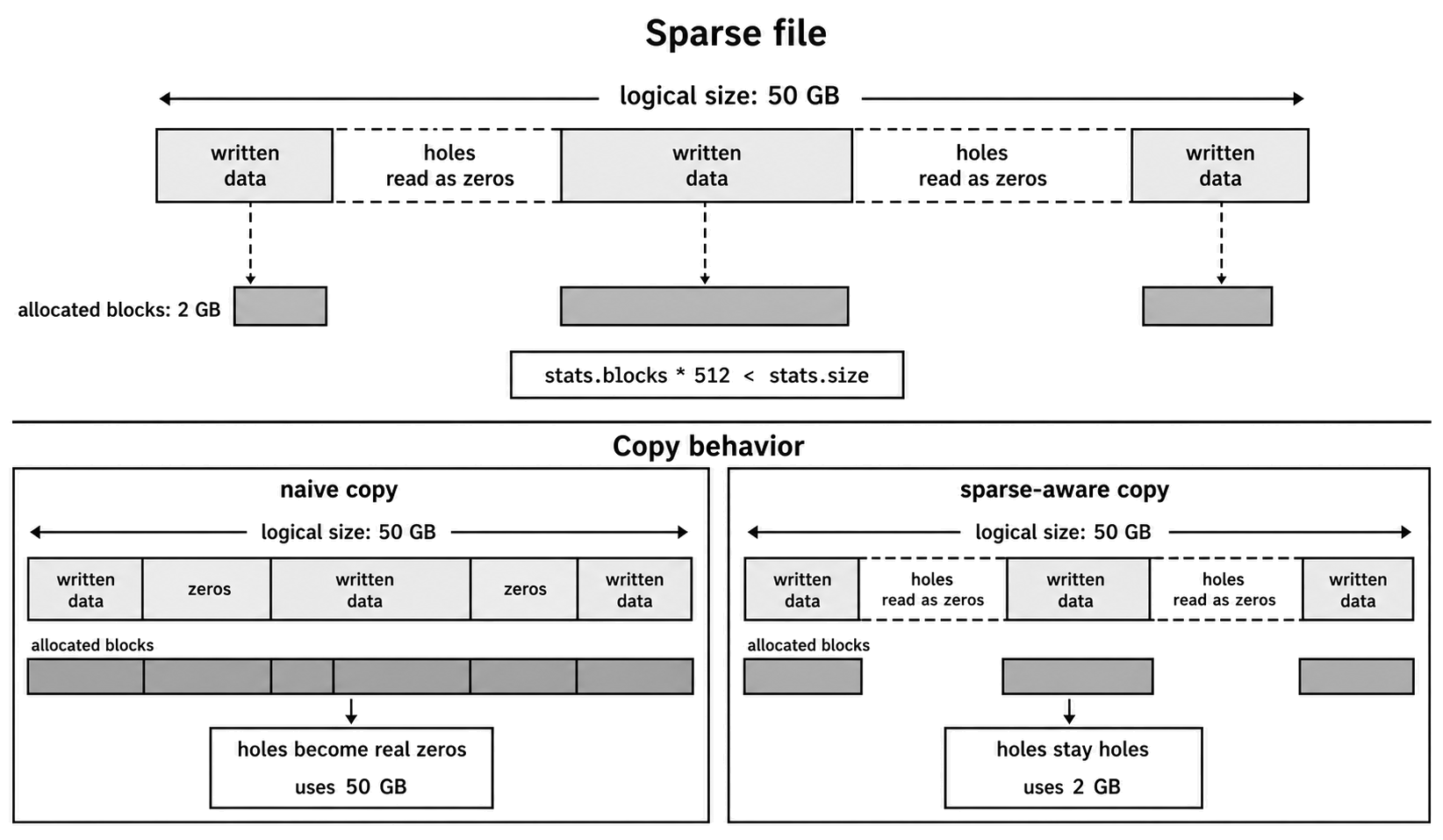
Figure 4.15 - A sparse file can report a large logical size while only some byte ranges occupy disk blocks.
Sparse files read like normal files. Holes return zeros. The problem usually appears during copying.
A naive copy that reads every byte and writes every byte can turn holes into real zero-filled storage. A file that used 2 GB on disk can become a 50 GB copy.
On Linux with GNU coreutils, cp --sparse=always can preserve holes -
const { spawnSync } = require('node:child_process');

const result = spawnSync('cp', ['--sparse=always', src, dest]);

if (result.error || result.status !== 0) {
  throw result.error || new Error(result.stderr?.toString() || 'cp failed');
}
Passing arguments as an array keeps paths out of shell parsing.
A simple sparse-file check compares allocated bytes to logical size -
function isSparse(stats) {
  return stats.blocks * 512 < stats.size;
}
Treat that as a Linux or common-POSIX estimate, not a universal guarantee.
Sparse files are common with VM disk images, database files, and container overlay filesystems. If your tool copies arbitrary files, decide whether preserving sparse holes is required before choosing the copy strategy.
A Safe File Type Guard
If your code expects ordinary files, combine the earlier checks into a small guard -
async function ensureRegularFile(filePath) {
  const stats = await fs.promises.stat(filePath);

  if (stats.isFile()) return stats;
  if (stats.isDirectory()) throw new Error('Is a directory');
  if (stats.isCharacterDevice() || stats.isBlockDevice()) throw new Error('Device file');
  if (stats.isFIFO()) throw new Error('Named pipe');
  if (stats.isSocket()) throw new Error('Unix socket');

  throw new Error('Unknown file type');
}
Call this before operations that expect regular files. It avoids whole-file reads on devices, blocking reads on FIFOs, directory errors, and common special-file surprises.
This is a classification guard. It is not a complete security boundary. It uses stat(), so symlinks are followed, and the path can change after the check. For hostile paths, open first and inspect the open descriptor with fstat() where possible.
The VFS Layer Behind stat()
When you call fs.stat('./file.txt'), Node does not read the file content. It asks the operating system for metadata.
The request passes through several layers. JavaScript calls Node's native binding layer. Node uses libuv's filesystem API. The operating system resolves the path and asks the filesystem for attributes. Then Node turns the result into a JavaScript Stats object.
On Linux and other Unix-like kernels, the kernel path goes through the VFS layer. VFS means Virtual File System. It is the kernel layer that lets different filesystems expose a common interface.
That common interface is why fs.stat() can work against ext4, XFS, Btrfs, NFS, procfs, devtmpfs, tmpfs, and more. The JavaScript shape is the same, even though the backend behavior can be very different.
When the kernel resolves a path, it walks each path component. It uses the directory entry cache, often called dcache, when it can. If the name-to-inode mapping is cached, lookup may be a memory operation. If it is not cached, the filesystem has to look it up from disk, a network server, or another backend.
Once the kernel has the inode, it asks the filesystem for attributes. For a local disk file, those attributes may come from the inode cache or storage. For NFS, they may require a remote call. For procfs, there may be no ordinary stored file content at all.
This explains the /proc size behavior. A procfs entry can report size = 0 because it does not store regular file content. When you read it, the kernel generates text from current kernel state.
Device files have a similar split. /dev/null and /dev/urandom have inode metadata, but reads are handled by device driver functions. Their size is commonly 0 because there is no stored content length.
The VFS layer gives Node one metadata interface. The values still depend on the backend. A normal file usually has a stable size. A /proc entry may report 0 while producing content. A character device may produce endless data.
Because stat() reads metadata, not content, file length is usually not the cost driver on a warm local filesystem. A 10 MB file and a 10 GB file can have similar stat cost if path and inode metadata are cached. Cold paths, network mounts, FUSE filesystems, virtual filesystems, and busy storage can make the same call much slower.
After the OS fills its platform stat structure, libuv stores the result in its filesystem request data. Node then builds a JavaScript Stats object with fields like stats.size, stats.mtimeMs, and stats.mode.
Application code should rely on Node's Stats contract, not a specific syscall path. Node and libuv may use different native calls across versions and platforms.
Working From Metadata
Use metadata to understand what a path appears to be right now.
Mask mode before reading permissions. Use stats.isFile() and related methods instead of decoding type bits by hand. Use lstat() when the symlink itself is the object you want. Use fstat() when you already have the file open.
Avoid preflight access() checks before normal file operations. Try the operation and handle the error from that operation.
Reject non-regular files before whole-file reads. Treat timestamps, block counts, and sizes as platform data, especially on virtual filesystems, network filesystems, sparse files, and device paths.
The filesystem owns the truth. Metadata is how your program asks for a snapshot of that truth.